How Gemini Data Classification Works in Google Drive: Setup, Limits and What to Check First
- Published
- Checked
- Sources
- 6 listed
- In short
- 4 key points
- By
- DevDiffs
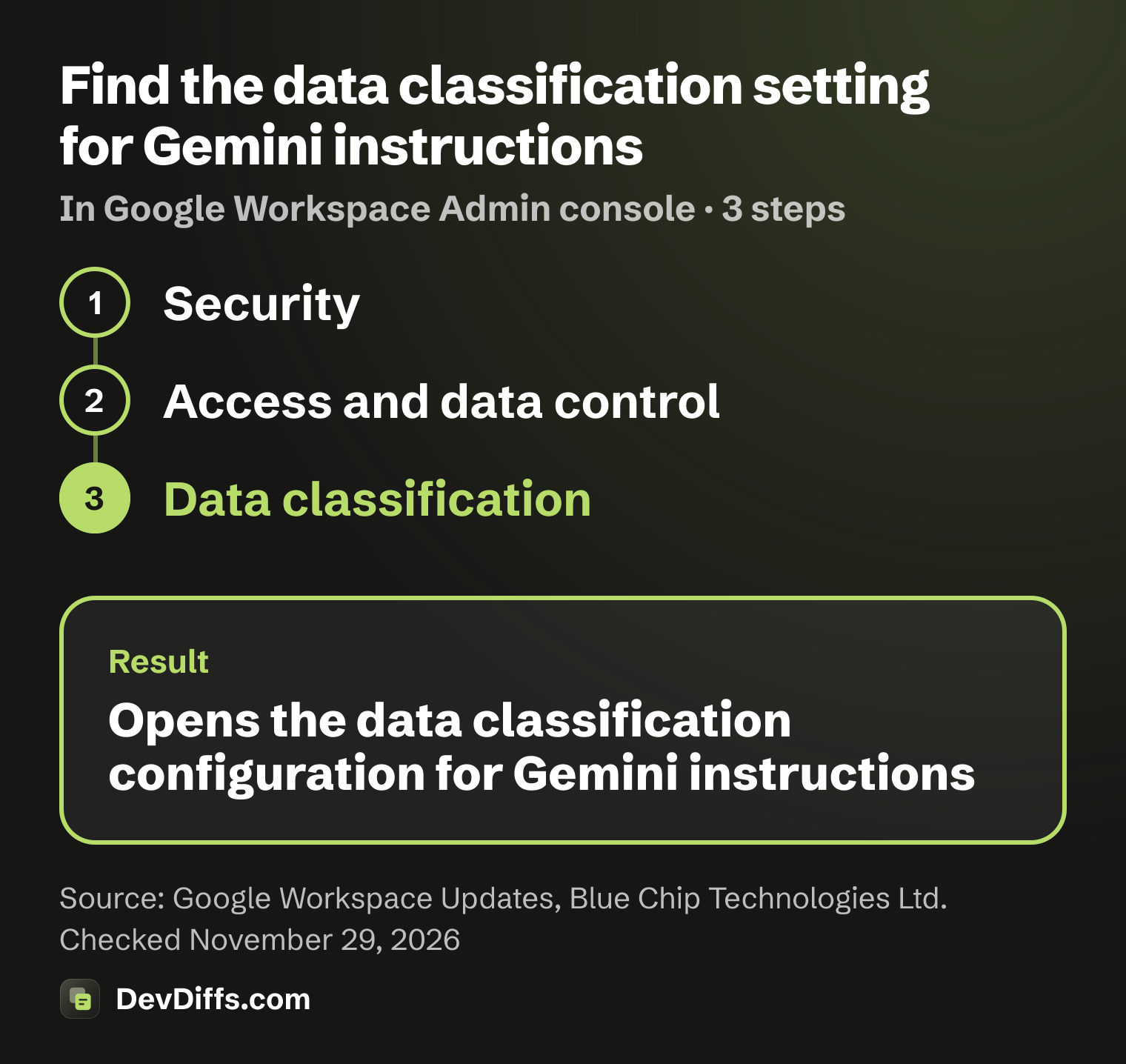
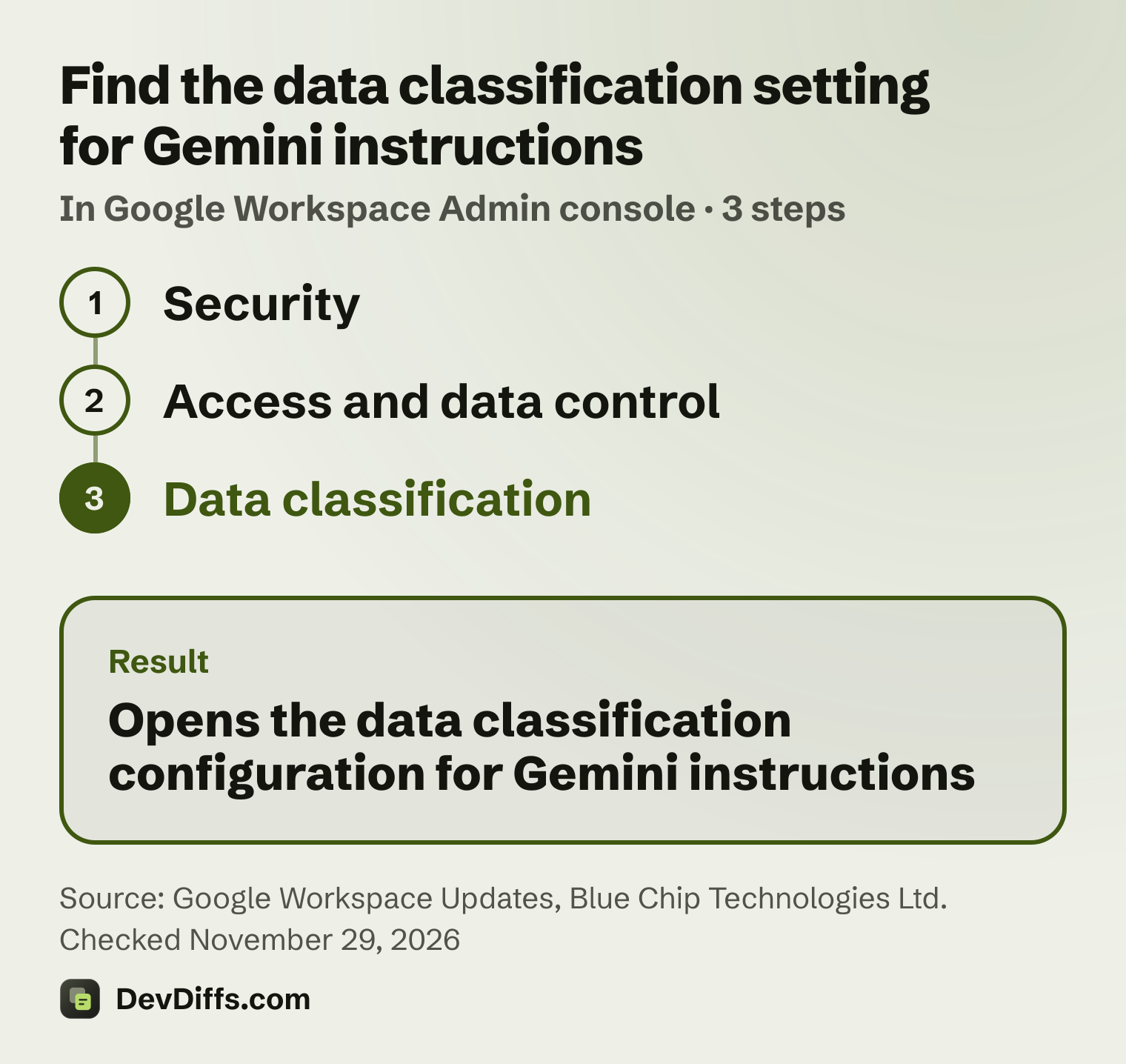
Gemini classification in Google Drive is in open beta and needs a supported license, such as Enterprise Plus, Frontline Plus or Google AI Pro for Education. Start in the Admin console under Security > Access and data control > Data classification. Admins select the label, provide instructions, and scope the audience. After auto-apply is turned on, a one-time scan of existing files typically starts within 1 to 2 weeks and can take weeks or months to finish.
In short4 key points
Key points
- The setup option appears in the Admin console under Security > Access and data control > Data classification for customers on a supported product license.
- Files must be in shared drives or owned by users with licenses that support classification labels to be labeled by AI classification.
- Gemini typically needs at least 50 words and 200 characters of readable text, or OCR text, to classify files accurately.
- Editors and owners with the appropriate label permissions can review and accept, or modify, a Gemini-applied label.
Full article: about 3 minutes
What Gemini classification does and who can use it
Gemini-powered AI classification in Google Drive is in open beta. It uses Gemini models to apply data classification labels to files.
Instead of training a model on labeled examples, you write instructions for Gemini. Admins select the label, give Gemini instructions, and set the audience for the files evaluated.
Gemini classification is available with Enterprise Plus, Google AI Pro for Education and Frontline Plus. AI classification is also included with the Gemini Enterprise–Legacy and AI Security add-ons.
Rapid Release and Scheduled Release domains are getting a gradual rollout to Open Beta, targeting completion by September 30th.
There is no end user setting for this feature. Editors and owners with the right label permissions can accept or change a Gemini-applied label.
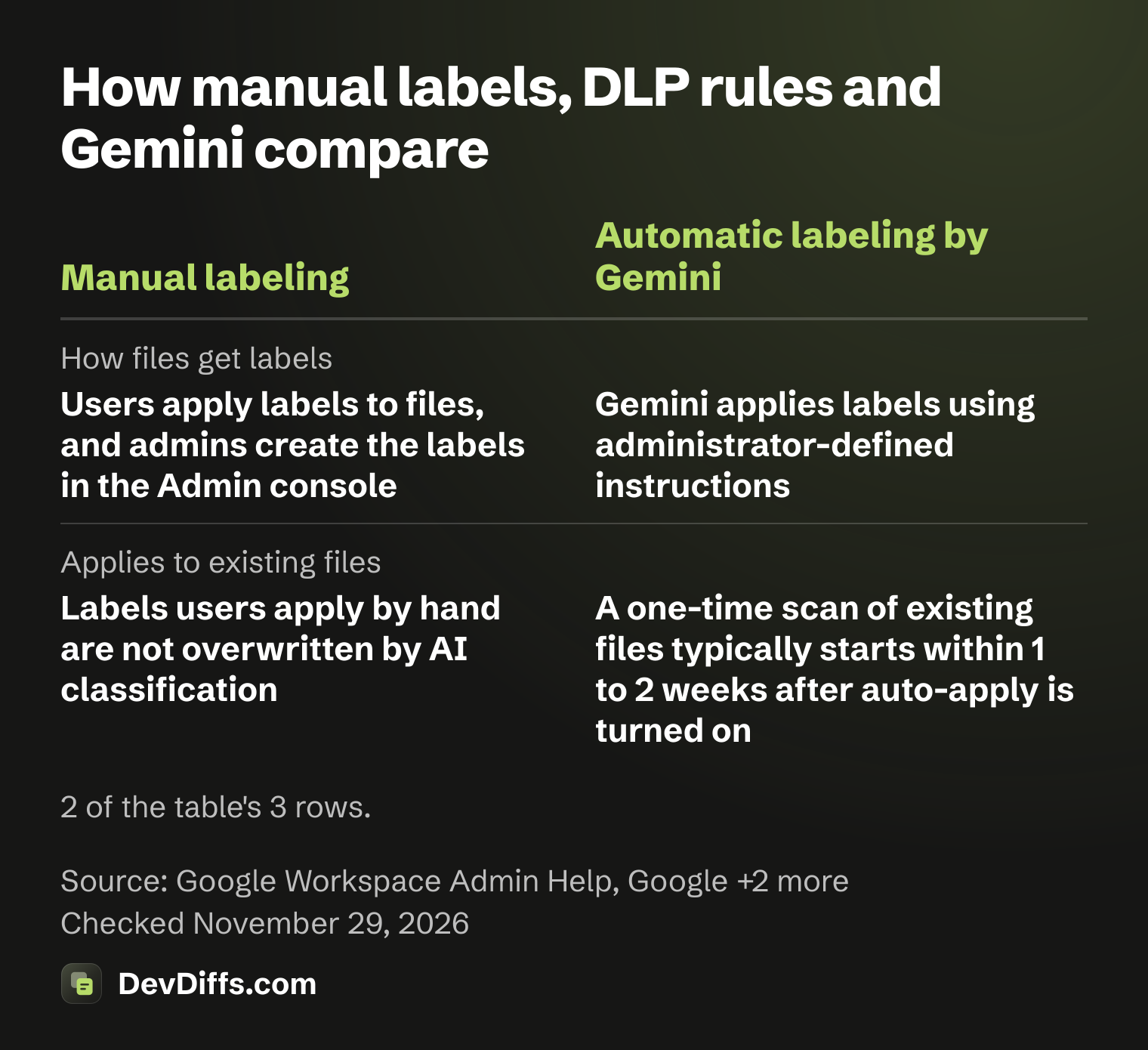
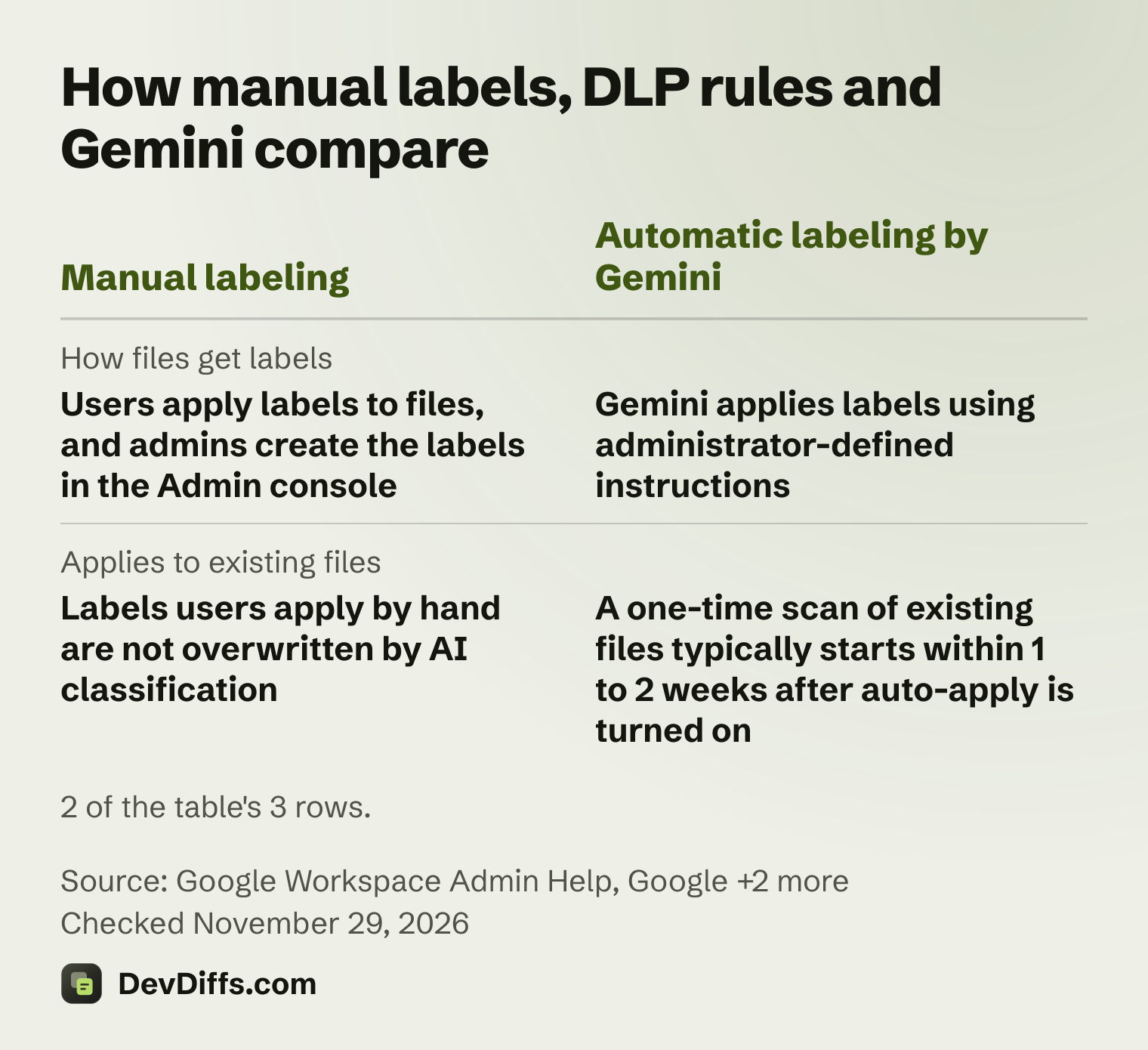
How manual labels, DLP rules and Gemini compare
ShowHide the full table (2 rows)
| Method | How files get labels | Applies to existing files | Limitations |
|---|---|---|---|
| Manual labeling | Users apply labels to files, and admins create the labels in the Admin console | Labels users apply by hand are not overwritten by AI classification | Up to 150 labels, including multiple badged labels |
| Automatic labeling by Gemini | Gemini applies labels using administrator-defined instructions | A one-time scan of existing files typically starts within 1 to 2 weeks after auto-apply is turned on | Needs at least 50 words and 200 characters of readable text, and client-side encrypted files are skipped |
The sources include no Workspace edition comparison page, so this table does not compare the editions or add-ons each method needs.
Setup in the Admin console
- Create labels in the Admin console, up to 150 in total.
- Make sure each label is published, turned on for Drive and Docs, and uses a single-select Options list or Badge list field with 2 to 7 options.
- In the Sample text field, type between 500 and 10,000 characters of sample document text.
- Turn on auto-apply and the one-time scan of existing files.
Which files Gemini can classify
Files must be in shared drives or owned by users with licenses that support classification labels. Gemini typically needs at least 50 words and 200 characters of readable text, or OCR text.
Client-side encrypted files are skipped. Video and audio files are not evaluated, and non-text media without readable or OCR text is skipped.
Existing files, DLP rules and default classification
The one-time scan of existing files typically starts within 1 to 2 weeks after auto-apply is turned on. Full completion can take weeks or months.
Changes to Gemini instructions apply only to future uploads and edits. Previously evaluated files are not rescanned, and on-demand rescanning is not supported.
AI classification does not overwrite labels applied by DLP rules or labels users manually applied, accepted, or modified.
Default classification applies labels to new files and when ownership changes. It does not retroactively apply labels to existing files unless the owner changes.
Labels used for default classification or DLP rules are locked in the label manager and cannot be edited, disabled, or deleted while in use.
Rules that change many files may take longer to process than rules that change only a few.
Accuracy, review and audit
Editors and owners with the appropriate label permissions can review and accept, or modify, a Gemini-applied label. Audit logs record when files are labeled and any acceptance or change.
Eligible Drive file content is processed and stored in the selected Data Region, the United States or Europe. Drive files and classification instructions are never used to train global Google models.
The sources do not give accuracy rates for Gemini instructions. The Gemini instruction documentation covers training scores only for custom models, not for instructions, so the accuracy of Gemini instructions cannot be measured from these sources.
Sources
- Create classification labels for your organization Google Workspace Admin Help, primary source. Accessed November 29, 2026.
- Google Workspace Updates: Gemini-based data classification in Google Drive is now available in open beta Google Workspace Updates, primary source. Accessed November 29, 2026.
- Apply classification labels to Drive files automatically with DLP rules Google, primary source. Accessed November 29, 2026.
- Label Google Drive files automatically using AI classification Google, primary source. Accessed November 29, 2026.
- Gemini Now Classifies Your Google Drive Files Automatically—Here's What That Means Blue Chip Technologies Ltd.. Accessed November 29, 2026.
- Apply Default classification labels to new files automatically Google, primary source. Accessed November 29, 2026.