How to Turn On 1080p Video in Google Meet on the Web and Why the Option May Not Appear
- Published
- Checked
- Sources
- 4 listed
- In short
- 4 key points
- By
- DevDiffs

To send 1080p in Google Meet, use a web browser and open meet.google.com. The option needs a computer with a 1080p camera and enough processing power. It is not supported in Firefox or Safari, and personal Google Accounts cannot use it. Eligible Workspace editions can use it.
In short4 key points
Key points
- 1080p video is limited to Chromium-based browsers such as Chrome, Microsoft Edge, Brave, and Vivaldi.
- The 1080p feature is not available to users with personal Google Accounts.
- In a web browser, open meet.google.com.
- 1080p is only sent when one or more users pin the 1080p-enabled user on a screen large enough to render the feed, and additional bandwidth is required.
Full article: about 3 minutes
How to turn on 1080p sending
In a web browser, go to meet.google.com. The send resolution setting controls the image quality that others see from your device.
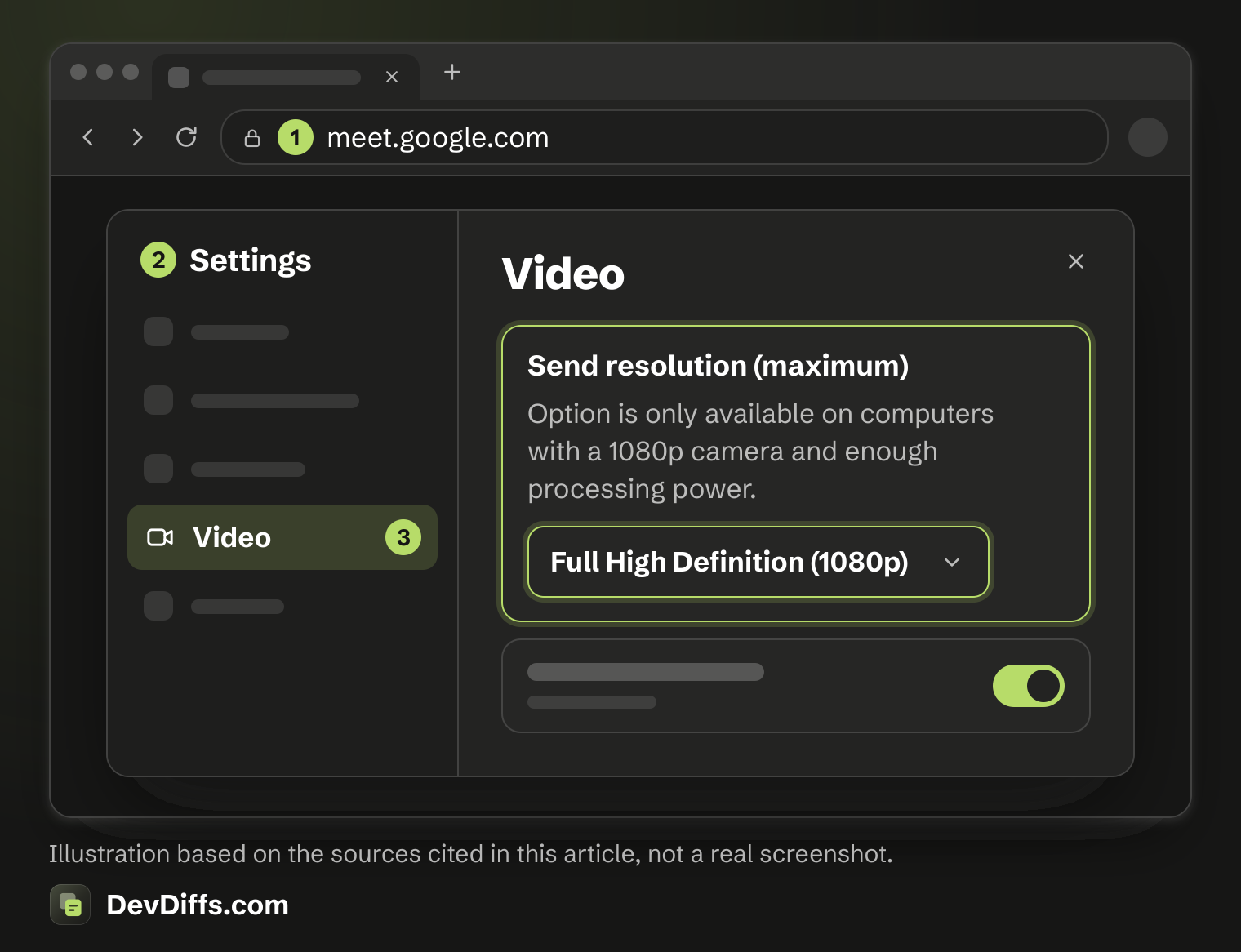
Open the Send resolution menu and choose the Full High Definition (1080p) setting. This setting is offered only on computers that have a 1080p camera and sufficient processing power.
The 1080p option is off by default. Users with a 1080p camera are prompted to turn it on before joining, or they can switch it on or off in the settings menu.
Why the 1080p option may not appear
Several conditions decide whether the option shows. Check each one below.
- Your computer needs a 1080p camera and enough processing power.
- Your browser must be Chromium-based, such as Chrome or Microsoft Edge. Firefox and Safari do not support 1080p.
- Your account must be a listed Workspace edition or a Google One plan with 2TB or more storage. Personal Google Accounts are not eligible.
- Your Workspace administrator may have set different video quality defaults, so the higher resolution may not show.
Which accounts and editions can send 1080p
The listed editions can send 1080p video: Business Plus, Business Standard, Education Plus, Enterprise Essentials, Enterprise Plus, Enterprise Standard, Enterprise Starter, Google Workspace Individual, and Teaching and Learning Upgrade. Google One subscribers with 2TB or more storage can also send 1080p on eligible devices.
| Condition | Whether 1080p is available |
|---|---|
| Personal Google Account | No |
| Listed Workspace editions | Yes |
| Google One with 2TB or more storage | Yes, with eligible devices |
| Chromium browsers such as Chrome and Microsoft Edge | Yes |
| Firefox or Safari | No |
| One-to-one calls and meetings with three or more participants | Yes, in both meeting sizes |
The official Google pages do not give a minimum browser version for 1080p sending. They also do not list a core count or bandwidth figure for it, and they do not say whether scheduled and instant meetings behave differently.
What the setting changes
The send resolution setting controls the image quality others see from you. Compatible devices can receive 1080p video, and receiving 1080p was already open to all users.
Why your video drops below 1080p
- Meet lowers resolution automatically when your device is bandwidth constrained.
- 1080p is only sent when at least one user pins the 1080p-enabled user on a screen large enough to show it, and that needs extra bandwidth.
- Meet changes resolution depending on how large each video tile is on screen.
- Smartphones can receive 1080p but transmit only 720p.
Admin controls and recording quality
Google says there is no specific admin control for 1080p, and default video quality options still apply.
Recording quality is a separate admin setting. It sits in the Google Admin console under Meet video settings and requires the Google Meet administrator privilege.
Rollout dates and conflicting reports
Google first announced 1080p for 1:1 calls, then expanded it to meetings with three or more participants. The Google Workspace Updates post says Rapid and Scheduled Release domains had it available at the time of the announcement.
MobileSyrup reports that Google expanded 1080p sending on the web to all users. Google’s Workspace Updates post says the feature is not available to personal Google Accounts, so the two reports differ on that point.
According to MobileSyrup, the rollout started on Nov. 11, and it could take as long as 15 days to reach each user.
Sources
- Improve your video & audio experience - Computer Google, primary source. Accessed November 28, 2026.
- Your Google Meet calls are about to get a little clearer MobileSyrup. Accessed November 28, 2026.
- Google Workspace Updates: Full HD available for group meetings in Google Meet Google Workspace Updates, primary source. Accessed November 28, 2026.
- Set recording quality limits for Google Meet Google, primary source. Accessed November 28, 2026.